Follow these steps to create an API user and receive your API key.
Open the seller panel
Log in to your Shiprocket seller panel.
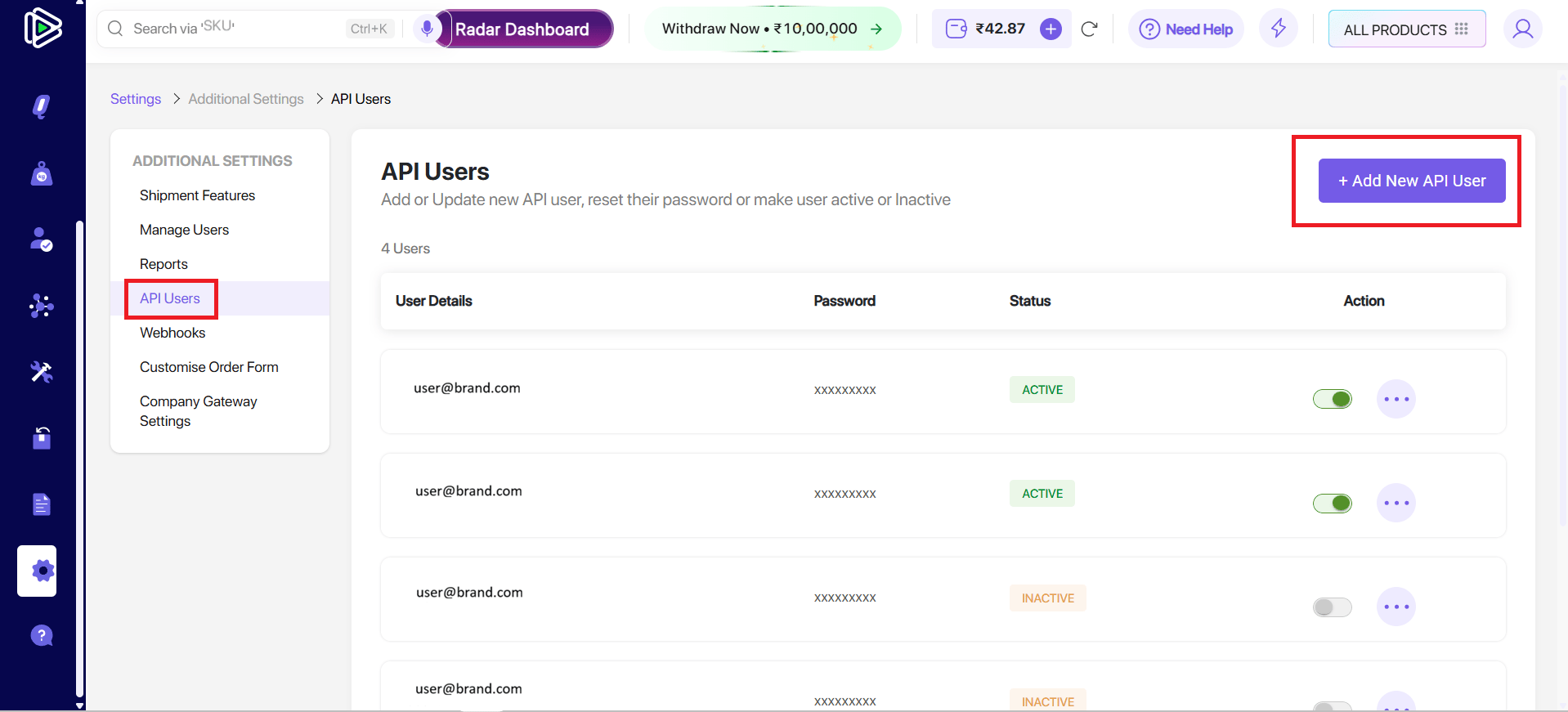
Navigate to API Users
Navigate to Settings → API Users.
Navigate to API Users
Navigate to Settings → API Users.
Settings → API Users
Add new API User
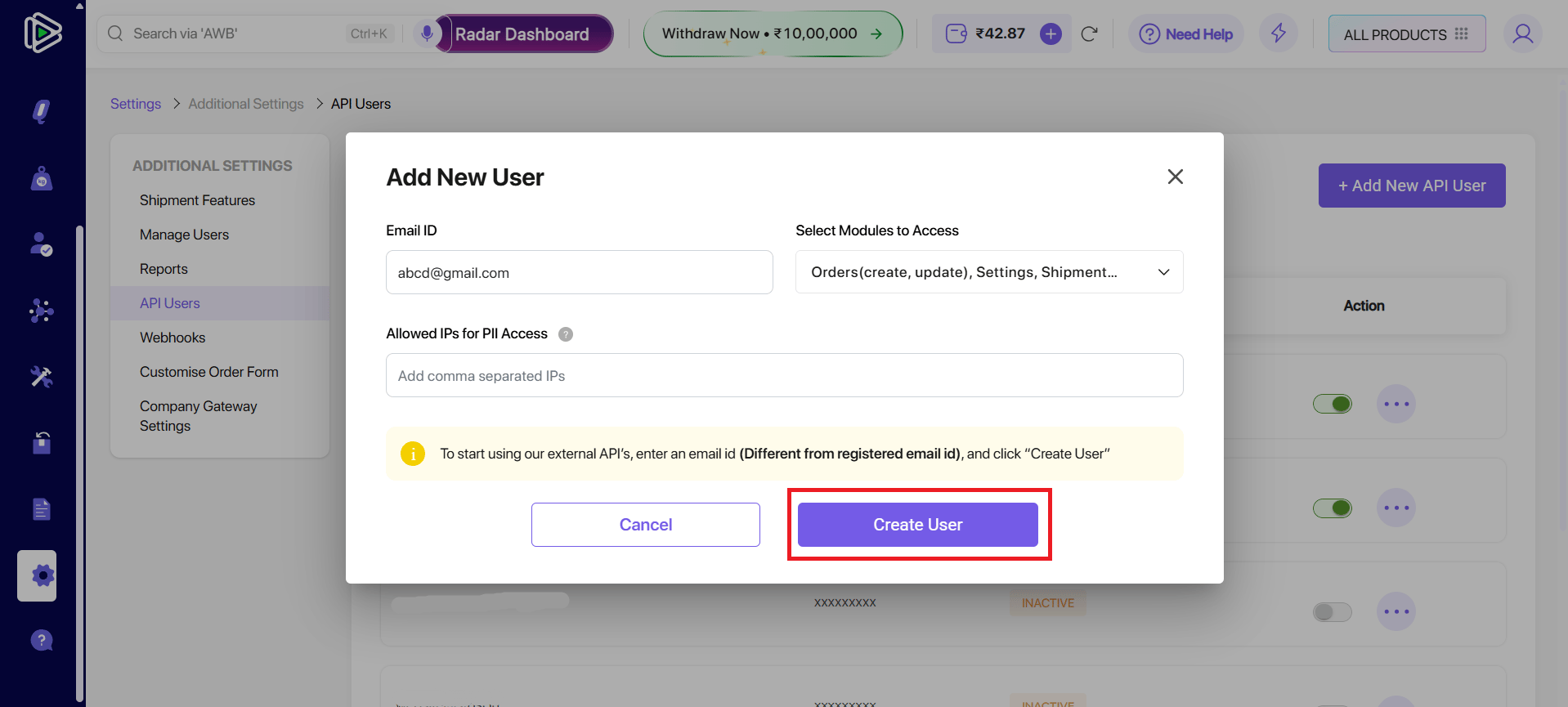
Click Add new API User.Enter the required details (email, password, etc.).
Enter a unique email address that is different from the one used for your main Shiprocket login. Using the same email will cause the API user creation to fail.
Add new API User
Click Add new API User.
API Users → Add new API User
Enter the required details (email, password, etc.).
Enter a unique email address that is different from the one used for your main Shiprocket login. Using the same email will cause the API user creation to fail.
Create User and receive the API key
Click Create User. The entered email address will receive an API Key from Shiprocket. Copy this key — you will paste it into Ocular.
Save the API key securely. If you lose it, you may need to create a new API user to generate a fresh key.
Create User and receive the API key
Click Create User. The entered email address will receive an API Key from Shiprocket. Copy this key — you will paste it into Ocular.
Save the API key securely. If you lose it, you may need to create a new API user to generate a fresh key.
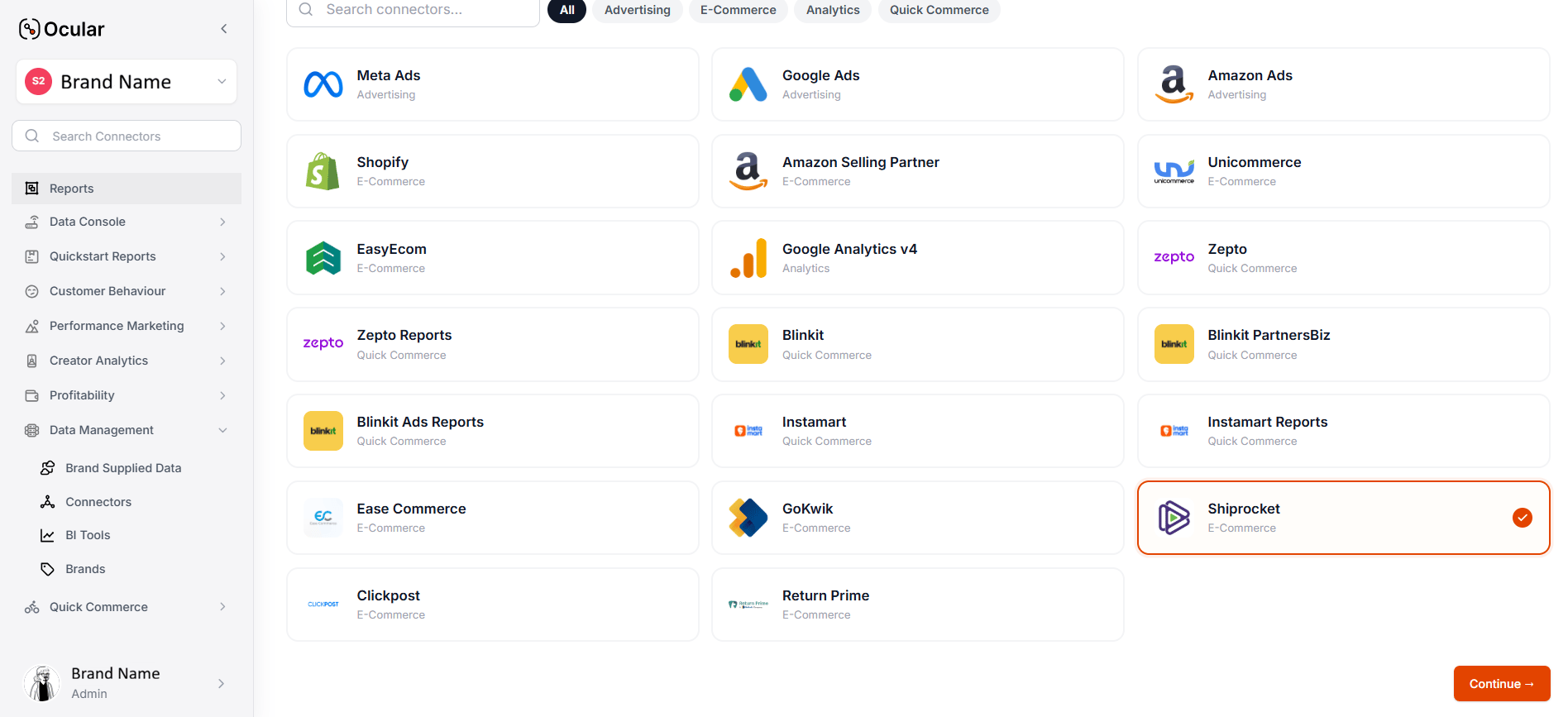
In Ocular, navigate to Data Management → Connectors → Add connector → Shiprocket.
Open the connector form
In Ocular, navigate to Data Management → Connectors → Add connector → Shiprocket.
Add connector → Shiprocket
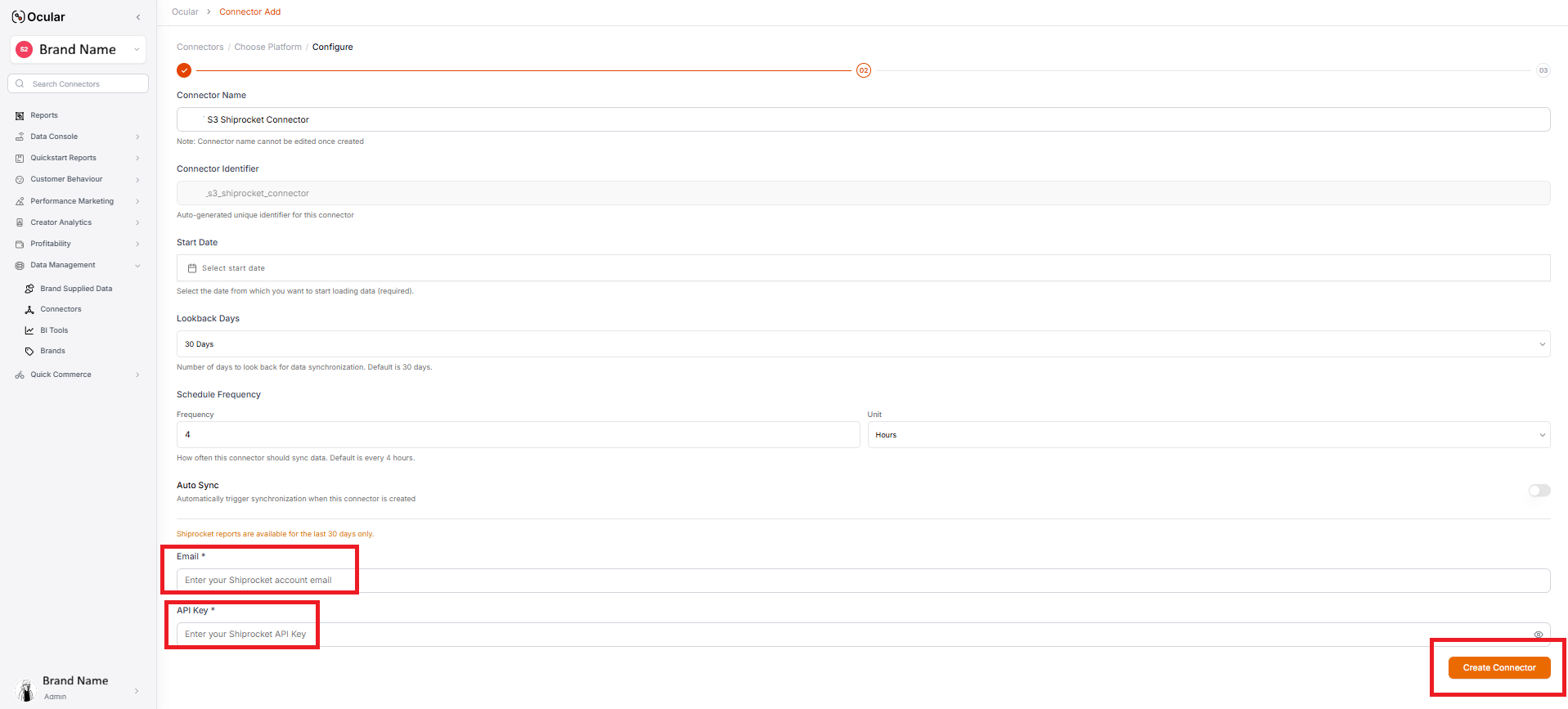
Fill the fields
Connector Name
Free-form label.
Connector Identifier
Auto-generated by Ocular.
Start Date
YYYY-MM-DD — how far back in time Ocular should pull data from your Shiprocket account. Choose a date from which you want to begin analyzing your shipping data.
Lookback Days
The number of past days from which data will be fetched during synchronization. This ensures that recent historical data is included and kept up to date. Default is 30 days.
Schedule Frequency
Defines how often the connector will automatically sync data. Configured using a numeric value (frequency) along with a time unit (e.g., hours), determining the interval between each sync cycle.
Auto Sync
Automatically triggers synchronization when the connector is enabled.
Email
The API user email you registered in Shiprocket.
API Key
The key you received via email.
Fill the fields
Connector Name
Free-form label.
Connector Identifier
Auto-generated by Ocular.
Start Date
YYYY-MM-DD — how far back in time Ocular should pull data from your Shiprocket account. Choose a date from which you want to begin analyzing your shipping data.
Lookback Days
The number of past days from which data will be fetched during synchronization. This ensures that recent historical data is included and kept up to date. Default is 30 days.
Schedule Frequency
Defines how often the connector will automatically sync data. Configured using a numeric value (frequency) along with a time unit (e.g., hours), determining the interval between each sync cycle.
Auto Sync
Automatically triggers synchronization when the connector is enabled.
Email
The API user email you registered in Shiprocket.
API Key
The key you received via email.
Shiprocket connector form — enter Email and API Key
Create the connector
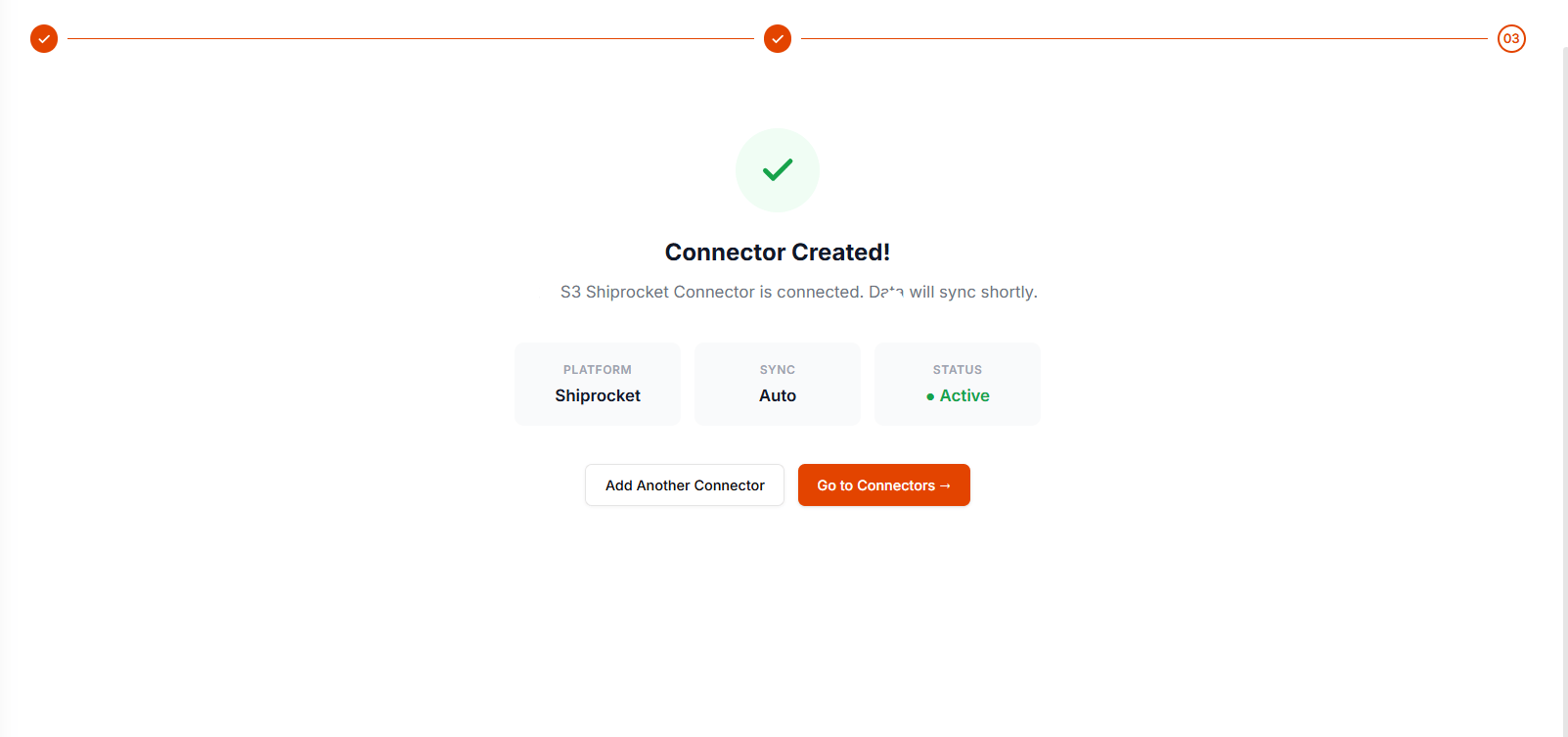
Click Create Connector. Ocular stores the credentials in its encrypted vault and triggers the first sync.
Create the connector
Click Create Connector. Ocular stores the credentials in its encrypted vault and triggers the first sync.
Connector created — data will begin syncing shortly
Almost always because the email you entered matches your main Shiprocket login. Use a unique address — e.g., ocular-api@your-domain.com.
Didn't receive the API key email
Check spam and confirm the email address is correct. If the key still doesn’t arrive, regenerate by deleting and recreating the API user in Settings → API Users.
Authentication errors after a key rotation
If you’ve created a new API user or rotated the key, update both Email and API Key in the connector form and re-test.


.png?fit=max&auto=format&n=q-V-PFkPr0MOCSrr&q=85&s=1537e41342a7c3ad2af25578007ac156)