
- Unicommerce Username – any active Uniware user with API access
- Unicommerce Password – the password you set for that user
- Unicommerce Account Code – the tenant part of your Uniware URL (e.g.,
demoinhttps://demo.unicommerce.com)
What you need
Username, password, account code, and the facility codes you want to sync.
What it unlocks
SKU master across channels, inventory-aware reporting, returns and status reconciliation in the Fulfilment data model.
Step 1 · Find your Account Code
Open Uniware
Log in to Uniware in your browser.
Read the URL
The address bar reads
https://ACCOUNT_CODE.unicommerce.com/....Copy the tenant string
Everything before
.unicommerce.com is your Account Code. Copy that string exactly — it is case-sensitive.Step 2 · Create (or pick) an API-capable user
Open Users
Go to Settings (gear icon) → Users.
Add a dedicated user (recommended)
Click Add to create a dedicated user or select an existing one. Learn more in Unicommerce Documentation.
Set credentials and role
Fill a unique Username (e.g.,
ocular_api). Set a strong password and give the user Admin role or explicit access to the facilities whose data you will pull. Click Save.Step 3 · Plug the credentials into Ocular
Open the connector form
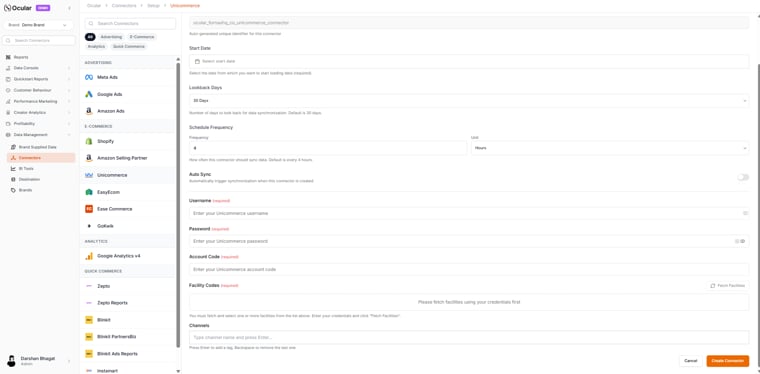
In Ocular, open Data Management → Connectors → Add connector → Unicommerce.
Fill the fields
Unicommerce Username
The username you created or selected.
Unicommerce Password
The password you just set.
Unicommerce Account Code
The string from Step 1 (case-sensitive).
Start Date
YYYY-MM-DD — choose the date from which you want Ocular to begin pulling your Unicommerce data.
Lookback Days
The number of days for which Ocular will keep refreshing past data (default is 30 days). This is particularly important for returns, as order returns can be triggered on any sales order up to several days after placing the order. For example, with a 30-day lookback, Ocular will daily check if any orders placed in the last 30 days have resulted in returns or other status changes.
Facility Codes
These represent the specific warehouses or fulfillment centers within your Unicommerce account. Click the Fetch Facilities button to retrieve all available facilities, then select one or multiple codes. If you don’t select any specific facilities, data from all facilities will be pulled by default.
Fill the fields
Unicommerce Username
The username you created or selected.
Unicommerce Password
The password you just set.
Unicommerce Account Code
The string from Step 1 (case-sensitive).
Start Date
YYYY-MM-DD — choose the date from which you want Ocular to begin pulling your Unicommerce data.
Lookback Days
The number of days for which Ocular will keep refreshing past data (default is 30 days). This is particularly important for returns, as order returns can be triggered on any sales order up to several days after placing the order. For example, with a 30-day lookback, Ocular will daily check if any orders placed in the last 30 days have resulted in returns or other status changes.
Facility Codes
These represent the specific warehouses or fulfillment centers within your Unicommerce account. Click the Fetch Facilities button to retrieve all available facilities, then select one or multiple codes. If you don’t select any specific facilities, data from all facilities will be pulled by default.
Channels
Optionally restrict the sync to specific sales channels. Type a channel name and press Enter to add it (Backspace removes the last one). Find your channel names in Uniware under Settings → Channels.
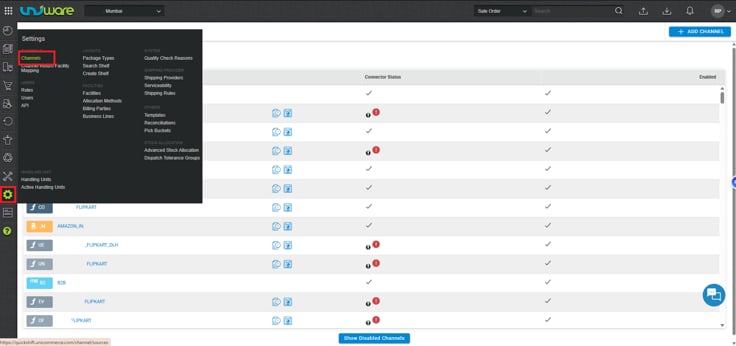
Find your channel names in Uniware under Settings → Channels.
Test the connection
Click Create Connector. Ocular sends a Basic-Auth request to Uniware’s
/services/rest/v1/auth endpoint; on success, you’ll see Connection successful.Create
Click Create. The credentials are encrypted in Ocular’s vault; your first incremental sync kicks off within minutes.
Create
Click Create. The credentials are encrypted in Ocular’s vault; your first incremental sync kicks off within minutes.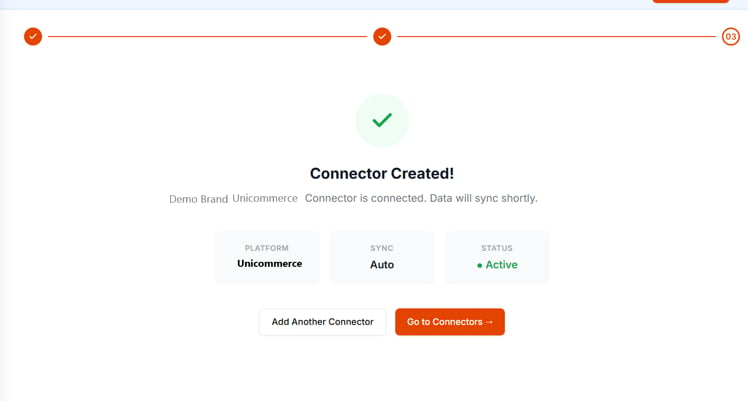
Troubleshooting
Some facilities are missing data
Some facilities are missing data
The selected user must have explicit access to every facility you want to sync, or be an Admin. Open the user in Uniware and verify the facility list, then re-run Fetch Facilities in Ocular.
Stale returns or RTO statuses
Stale returns or RTO statuses
Increase Lookback Days above 30 — returns can be triggered several days after the original order. A 60- or 90-day lookback is common for brands with long return windows.
For ticket-writing format when filing a connector issue, see Working with the Ocular team → Connector-not-working tickets.