

What is a User Activity Cohort
A User Activity Cohort groups users who perform a specific Start Event within the same time period, then tracks whether those same users return to perform a Return Event in subsequent periods. It reveals:- Retention rates over time
- Churn patterns at specific intervals
- Engagement trends by acquisition channel
- Event adoption and continued usage patterns
Why this matters
For business stakeholders
Answers the trajectory questions:
- Are we building an engaging experience, or a leaky bucket?
- Which acquisition channels bring users who actually stay?
- Is our retention improving month over month?
For analysts & growth teams
Answers the diagnostic questions:
- What % of users who signed up last week are still active?
- Which features do power users return to repeatedly?
- Which user segments retain best, and why?
How to use it - a worked example
Scenario - a D2C skincare brand
A direct-to-consumer skincare brand acquires users through Instagram ads, influencer partnerships, and Google Shopping. The marketing team wants to know which channels drive loyal, repeat buyers — not just first-time purchasers.Defining the retention logic
Every User Activity Cohort is anchored on two events:- Start Event — determines who enters the cohort
- Return Event — determines whether those users are retained
Configuration
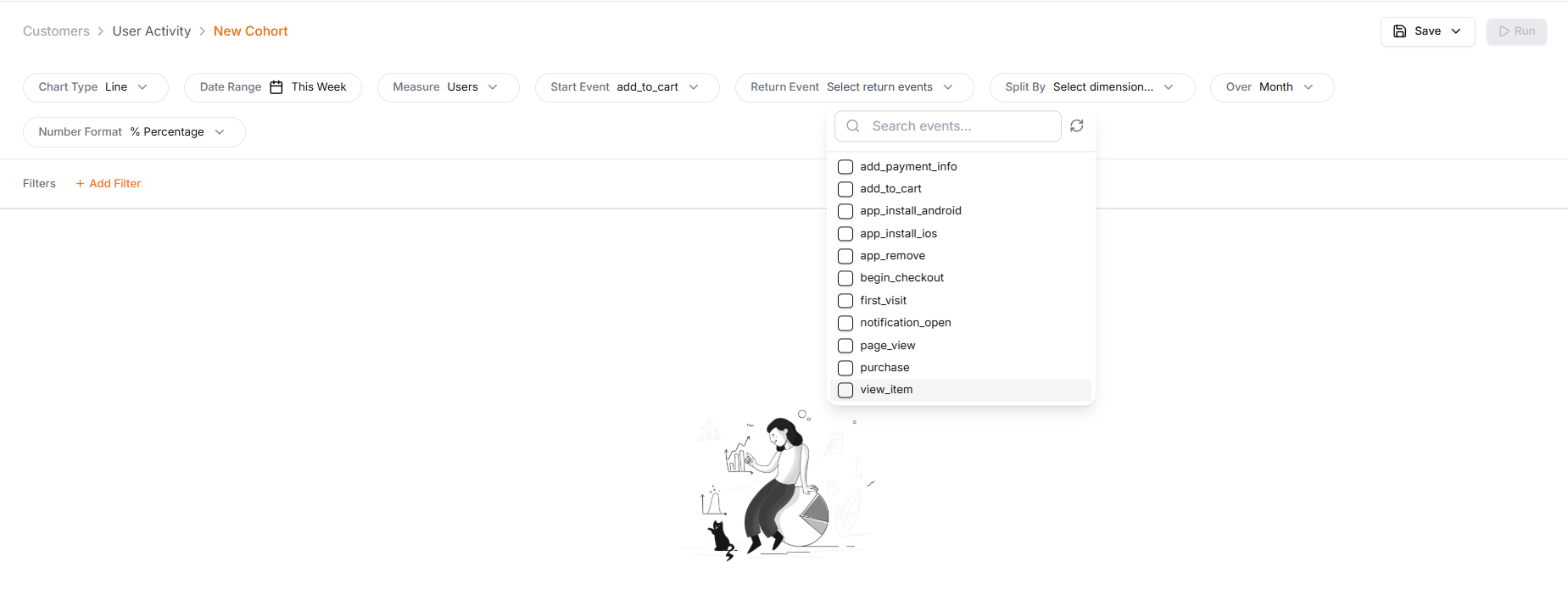
Configuration: Start = add_to_cart, Return = session_start, Split by Entry UTM Source (Breakout), Users, Week, Last 90 days, Percentage
What the cohort reveals
Sample retention output:Actionable insights by team
- 📦 E-commerce teams
- 🚀 Growth teams
- 📊 Analytics & leadership
Insights
- Sharp drop-off between Week 1 (~34%) and Week 2 (~22%) across channels
- Users who don’t return by Week 2 rarely become repeat visitors
- Trigger an automated WhatsApp/email journey at Day 10:
- Product usage education
- Reviews and before/after results
- Limited-time repeat-purchase offer
How the User Activity Cohort works
Feature layout
The User Activity Cohort screen has two parts:- Retention Curve - visual trend at the top
- Cohort Table - detailed breakdown below
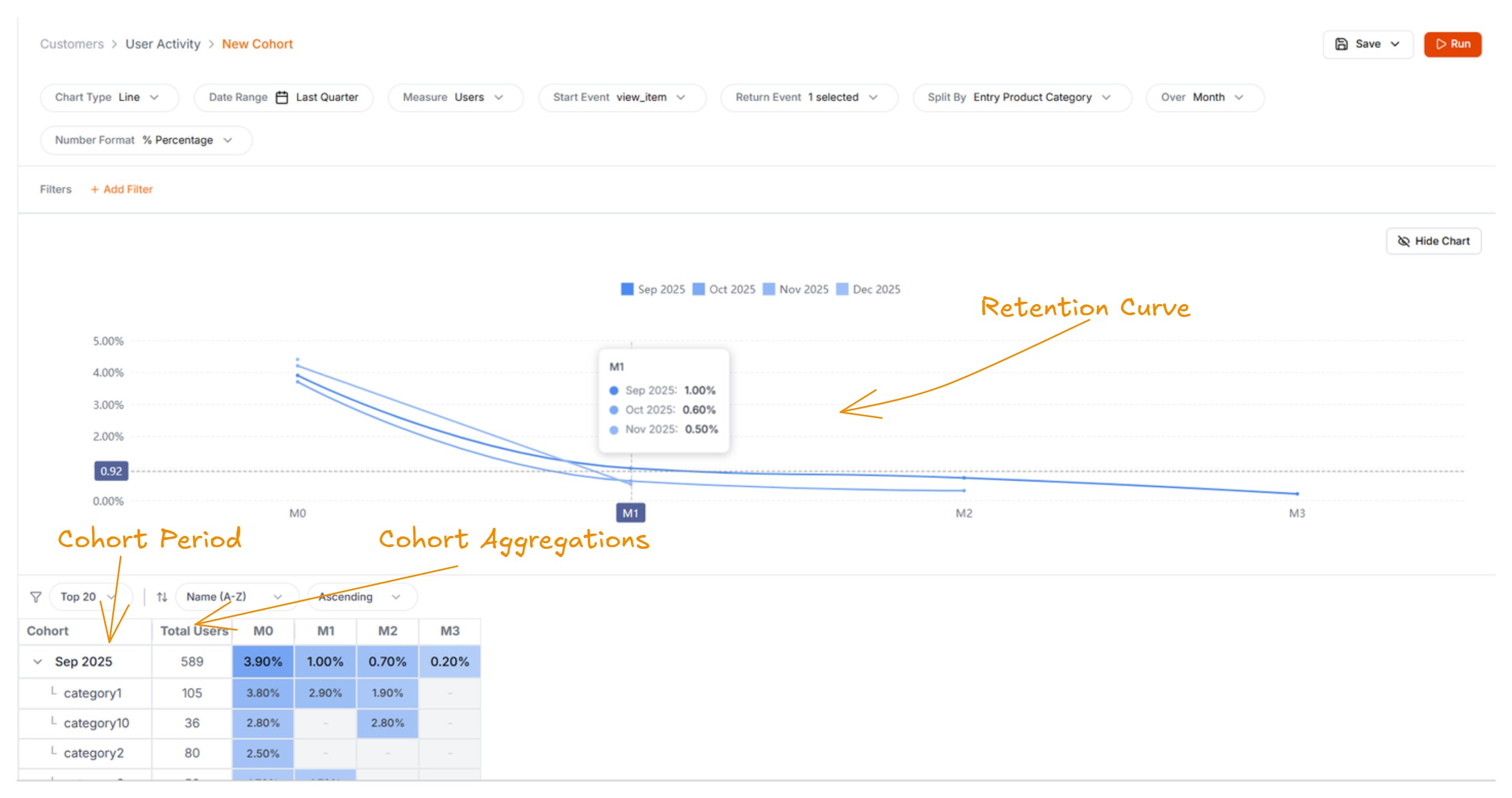
User Activity Cohort screen — retention curve on top, cohort table below
Visualisation options
- Chart type: Line, Area, Bar
- Number format: Absolute values or Percentages
Cohort table — what each column means
Percentages are rounded to 2 decimal places.
Defining your analysis — the query bar
The top of the screen lets you define the behaviour and parameters for your analysis.Every selection here changes who is considered retained.
1. Measure & events
Measure determines what fills each cohort cell.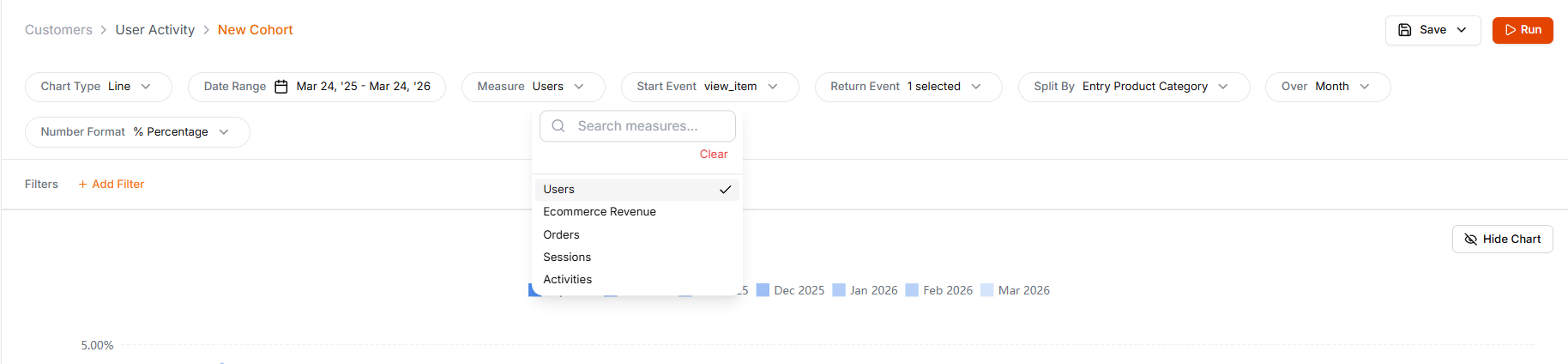
Measure dropdown — Users, Ecommerce Revenue, Orders, Sessions, Activities
Start Event and Return Event define the lifecycle you’re tracking. Both are pulled from your GA4 event schema.
2. Time and granularity
- Date Range: 7d, 30d, This Month, FYTD, Custom, etc.
- Granularity: Day, Week, Month, Quarter, Year
3. Start Event
Defines who enters the cohort.4. Return Event
Defines what counts as retention.5. Split By (segmentation)
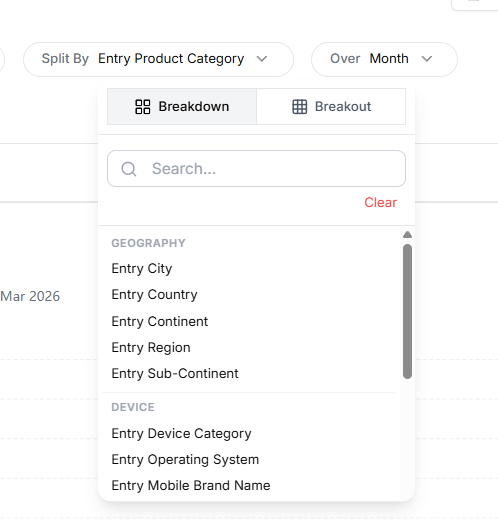
Split By panel — Entry attributes (UTM, geo, device, page) with Breakdown/Breakout modes and Top-N
- Entry UTM Source / Medium / Campaign
- Entry City, Country
- Entry Device
- Entry Page
Breakdown mode
Cohort period stays the primary row. Each cohort week is broken down into nested sub-rows, one per split-by value.Example: Split by Entry City → expand Week Jan 1–7 to see Mumbai, Delhi, Bangalore as nested rows inside it, each with its own Week 0/1/2/4… retention.Use when you want to see the segment composition within each acquisition period.
Breakout mode
Split-by value becomes the primary row. Each segment is broken out into its own complete cohort row across cohort weeks.Example: Split by Entry City → one row for the Mumbai cohort, one for Delhi, one for Bangalore, each with its own Week 0/1/2/4 retention timeline.Use when you want to compare retention curves side-by-side across segments.
6. Advanced filtering & logic
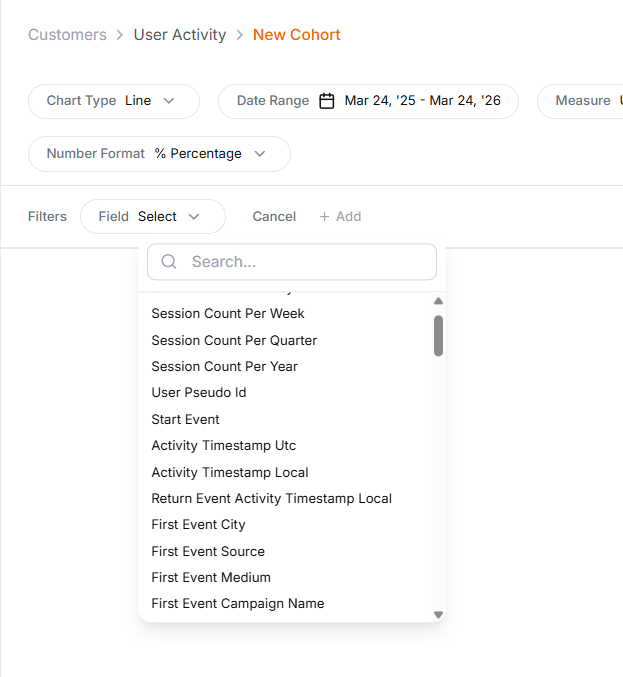
Filter panel — Entry Filters and Return Filters with combinatorial logic
- Entry UTM Source = Instagram
- Entry City = Mumbai
- Entry Device = Mobile
- Return UTM Source = Email
- Return Device = Desktop
- Return Page = Product Detail Page
Filter logic:
Tips for analysing retention
Key interpretation rules
- A user belongs to only one cohort — based on their first Start Event. A user in the Jan 1–6 cohort won’t also appear in Jan 7–14.
- A user can appear in multiple retention periods — they could be counted in Week 1, Week 5, or all weeks. This is the desired behaviour and indicates strong retention.
Save a cohort for reuse
You can save a User Activity Cohort configuration to reuse without rebuilding it. What gets saved:- Start Event and Return Event definitions
- Measure selection
- Date range and granularity
- Split-by configuration and mode
- Entry and Return filters