
What you need
Base URL, App ID, and App Secret from GoKwik.
What it unlocks
Checkout-funnel analysis, COD vs prepaid splits, address-prefill outcomes, and abandon reasons.
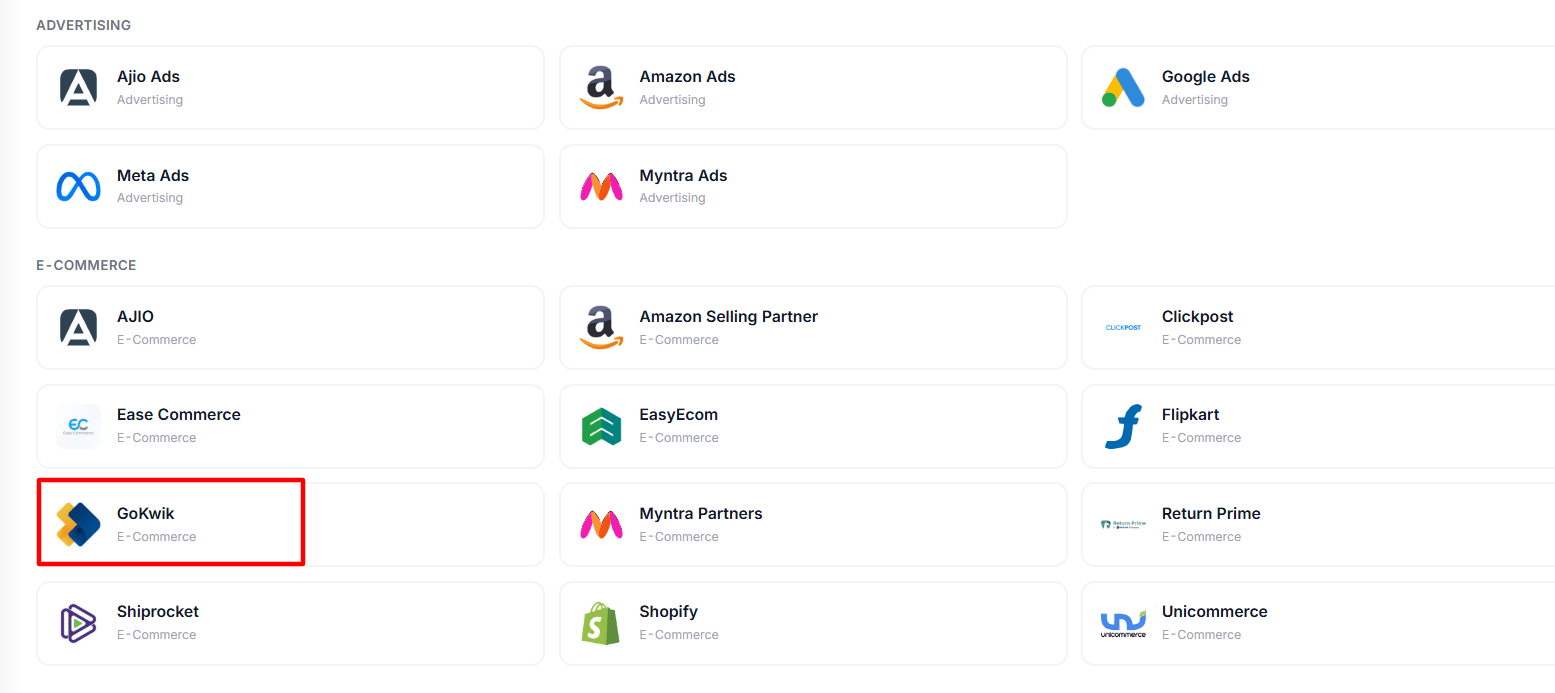
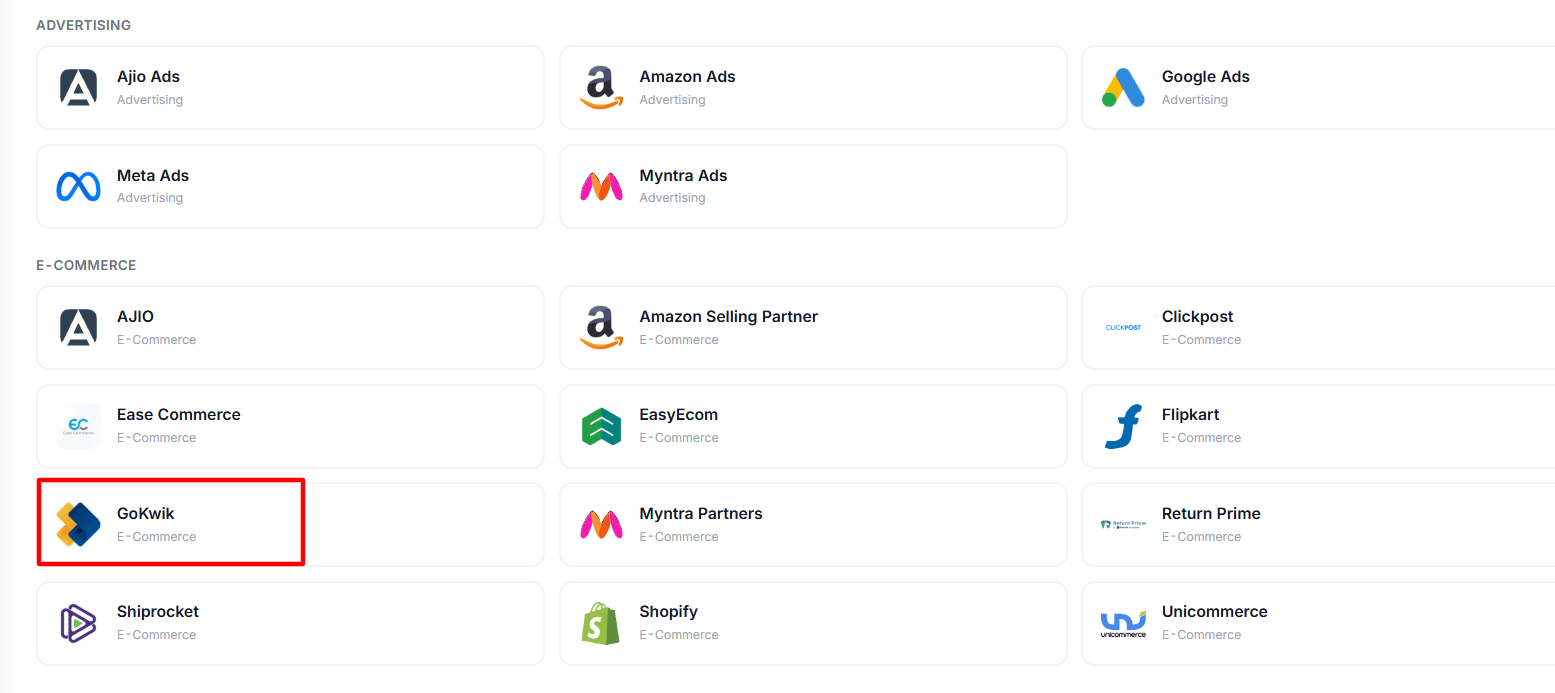
GoKwik connector — Data Management → Connectors → Add connector → GoKwik
Step 1 · Connector setup fields
When adding the connector, Ocular will ask for the following fields. Decide on these before you start.Connector Name
Unique recognisable name (e.g.,
gokwik_main). Cannot be changed after creation — choose carefully.Connector Identifier
Auto-generated by Ocular — no action needed.
Start Date
YYYY-MM-DD — the date from which Ocular should begin pulling GoKwik data.
Lookback Days
Default 30. Increase if RTOs, returns, or abandon-recovery events commonly land further out.
Schedule Frequency
Numeric value plus unit (default: every 4 hours).
Auto Sync
Toggle on to start syncing automatically as soon as the connector is created.
Step 2 · Find your GoKwik credentials
Base URL
- Sandbox
- Production
For testing:
https://sandbox.gokwik.coApp ID & App Secret
Log in to GoKwik
Open your GoKwik merchant dashboard.
Open API Credentials
Navigate to Settings → API Credentials (or Integrations → App Settings, depending on your dashboard version).
Copy the values
Copy the App ID and App Secret shown on that page.
4
Keep the App Secret secure
It grants API-level access to your GoKwik account and should not be shared.
Step 3 · Plug the credentials into Ocular
Open the connector form
In Ocular, open Data Management → Connectors → Add connector → GoKwik.
Fill the fields
- Base URL — sandbox or production URL from Step 2.
- App ID — from Step 2.
- App Secret — from Step 2.
- Plus the setup fields from Step 1.
Create the connector
Click Create Connector. Ocular authenticates against the GoKwik API; on success you’ll see Connection successful.Click Create — credentials are encrypted in Ocular’s vault and the first incremental sync starts within minutes.
Troubleshooting
Failed connection
Failed connection
Most common cause is the wrong Base URL (sandbox vs production). Confirm with your GoKwik account manager and retry.
Authentication errors
Authentication errors
Re-copy App ID and App Secret — watch for leading/trailing spaces. If the secret was rotated in GoKwik, you’ll need to update Ocular’s stored credentials too.
Status changes not reflecting
Status changes not reflecting
Increase Lookback Days beyond 30 if RTOs or abandonment status changes typically arrive late.
For ticket-writing format when filing a connector issue, see Working with the Ocular team → Connector-not-working tickets.