Documentation Index

Fetch the complete documentation index at: https://docs.ocular.dev/llms.txt

Use this file to discover all available pages before exploring further.

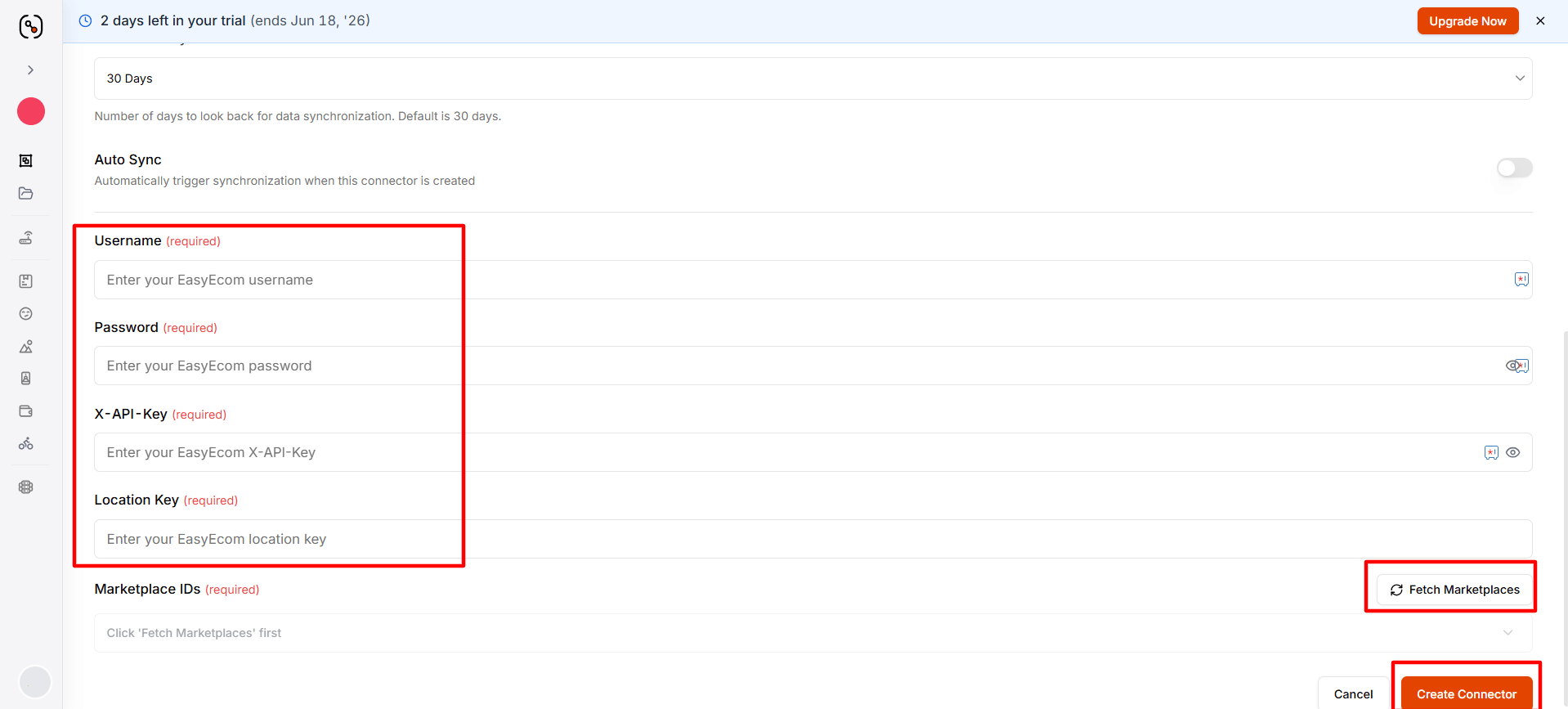
Required fields in Ocular:
  • Username – your EasyEcom account username
  • Password – the password for your EasyEcom account
  • X-API-Key – the API key generated from your EasyEcom account
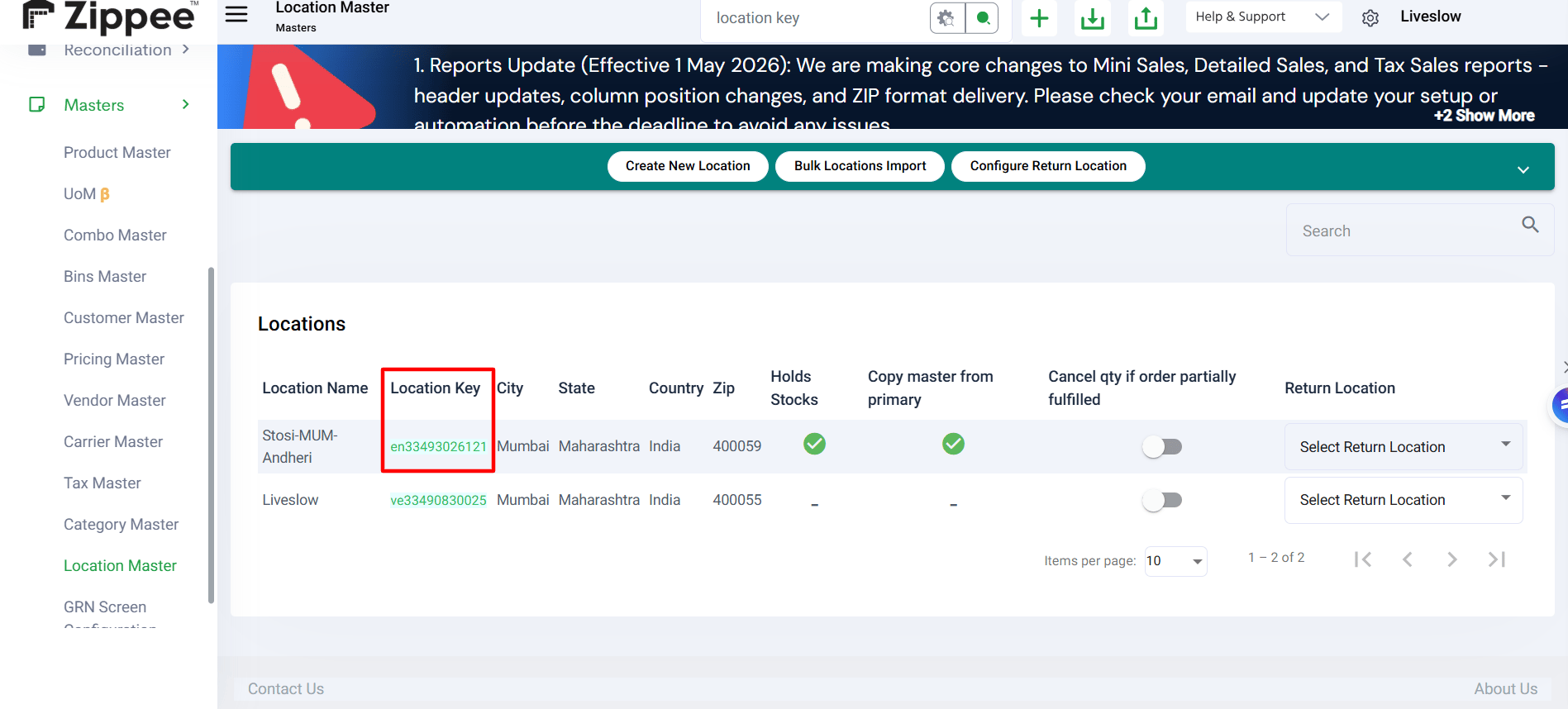
  • Location Key – the location/warehouse key from your EasyEcom account
Follow the three sections below: grab each credential from EasyEcom, then paste them into Data Management → Connectors → Add connector → EasyEcom.

What you need

Username, password, X-API-Key, and Location Key from your EasyEcom account.

What it unlocks

OMS orders, inventory levels, and fulfilment data flowing into Sales Performance and the P&L.

Step 1 · Connector Setup Details

When adding the connector, Ocular will ask you to fill in the following fields:

Connector Name

Give this connector a unique, recognisable name (e.g., easyecom_main). This cannot be changed after creation, so choose carefully.

Connector Identifier

Auto-generated by Ocular. No action needed.

Start Date

YYYY-MM-DD — choose the date from which you want Ocular to begin pulling your EasyEcom data.

Lookback Days

The number of days for which Ocular will keep refreshing past data (default is 30 days). This is particularly useful for orders whose status updates — such as returns or fulfilment changes — may come in several days after the original order date.

Schedule Frequency

Defines how often Ocular syncs your EasyEcom data. Set the Frequency (a numeric value) and the Unit (e.g., Hours) together to control the sync interval. Default is every 4 hours.

Auto Sync

Toggle this on if you want Ocular to begin syncing automatically as soon as the connector is created.

Step 2 · Find your EasyEcom credentials

Username & Password

Use your EasyEcom login

These are the same credentials you use to log in to your EasyEcom account at app.easyecom.io.

Create a dedicated user (recommended)

It is recommended to create a dedicated user for Ocular (e.g., ocular_api) with the necessary permissions, rather than using a personal login.

X-API-Key

Open API settings

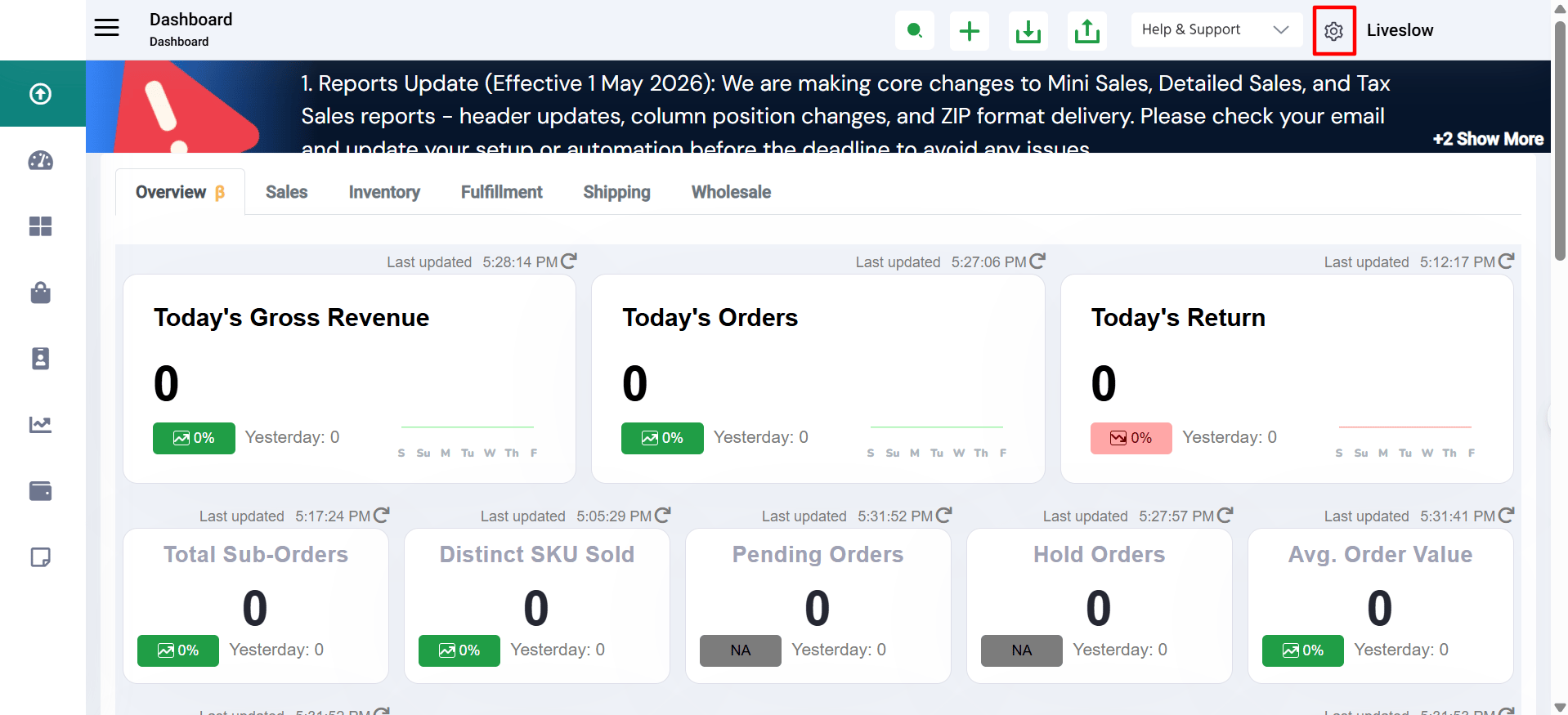
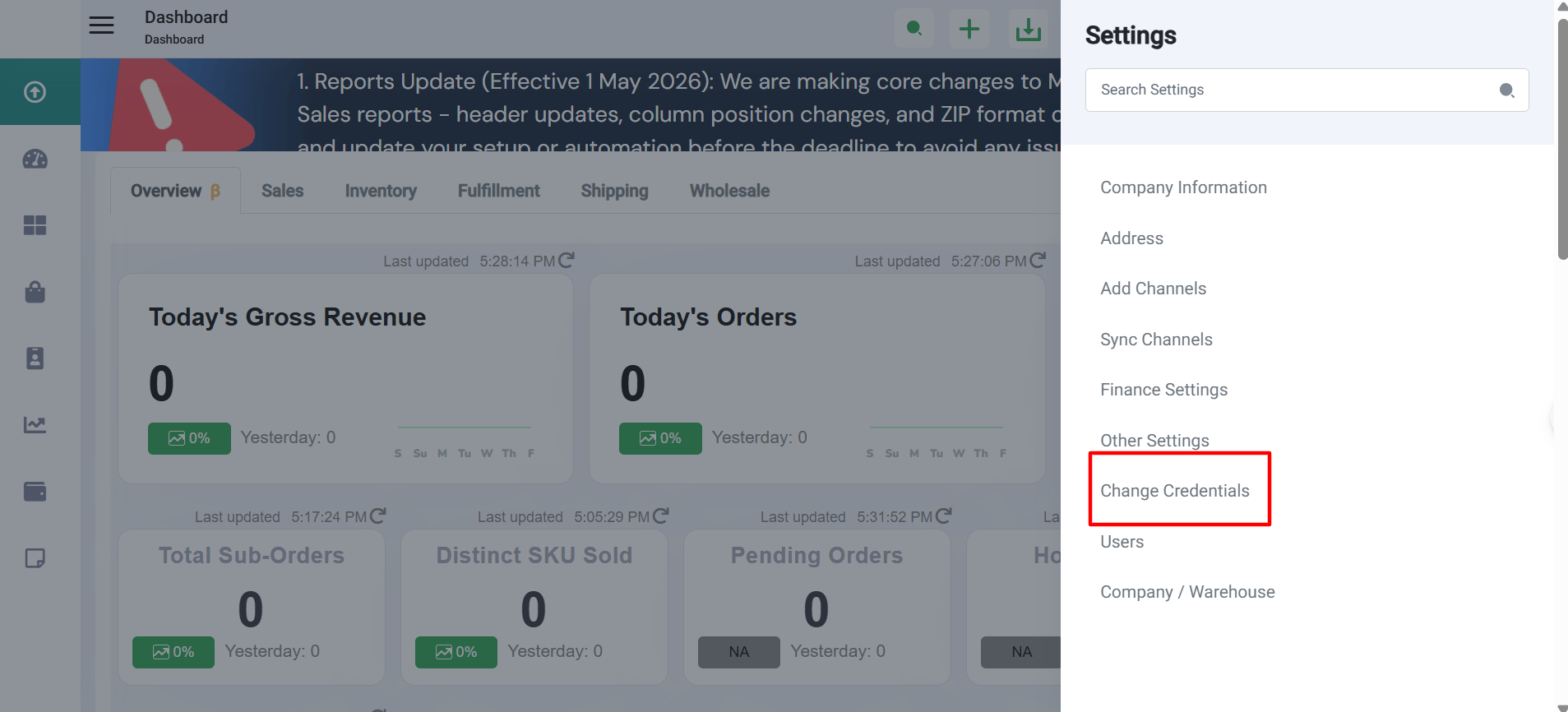
Log in to EasyEcom and go to Settings → API & Webhooks (or Integrations → API Access, depending on your account version).

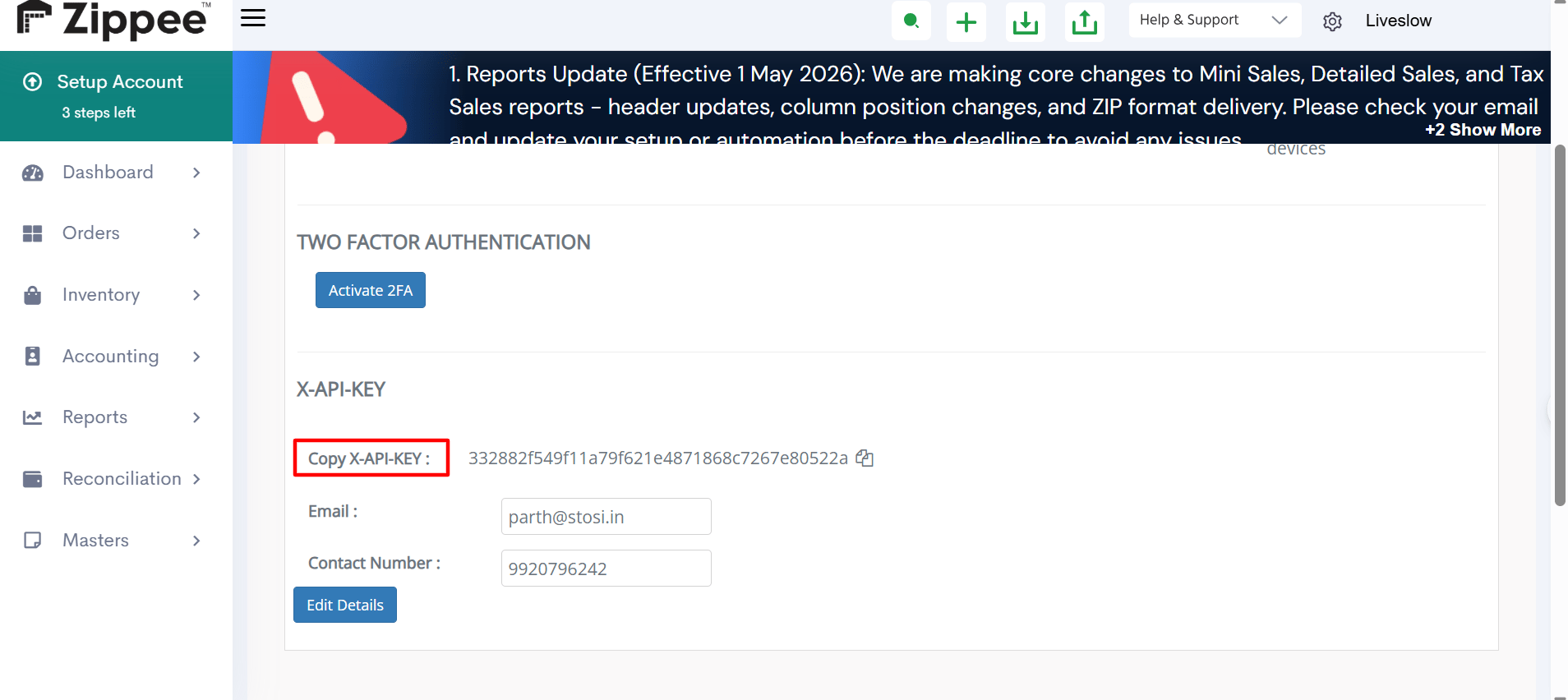
Copy the X-API-Key

Copy the X-API-Key shown on that page. If no key exists, click Generate to create one.
Keep this key secure — it grants API-level access to your EasyEcom account.

Location Key

Open warehouse settings

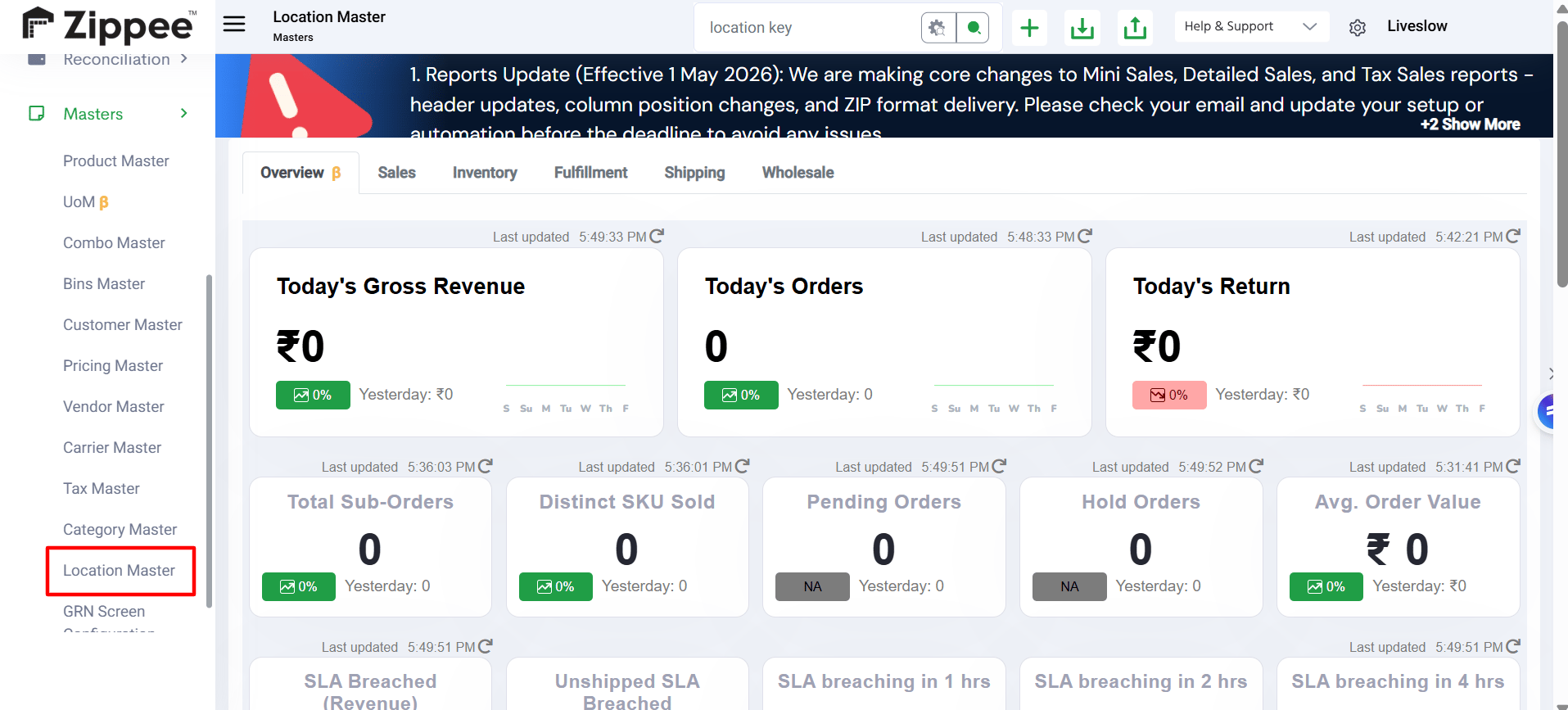
In EasyEcom, go to Settings → Warehouses / Locations.

Copy the Location Key

Each warehouse or fulfilment location in your account has a unique Location Key. Copy the key for the location whose data you want Ocular to pull. If you want data from multiple locations, you can add them as separate connectors.
If you are unsure where to find the X-API-Key or Location Key in your specific EasyEcom plan, contact EasyEcom support or check their API documentation at developers.easyecom.io.

Step 3 · Plug the credentials into Ocular

Open the connector form

In Ocular, open Data Management → Connectors → Add connector → EasyEcom.

Fill the fields

Username

Your EasyEcom account username.

Password

The password for that account.

X-API-Key

The API key from Step 2.

Location Key

The location key from Step 2.

Test the connection

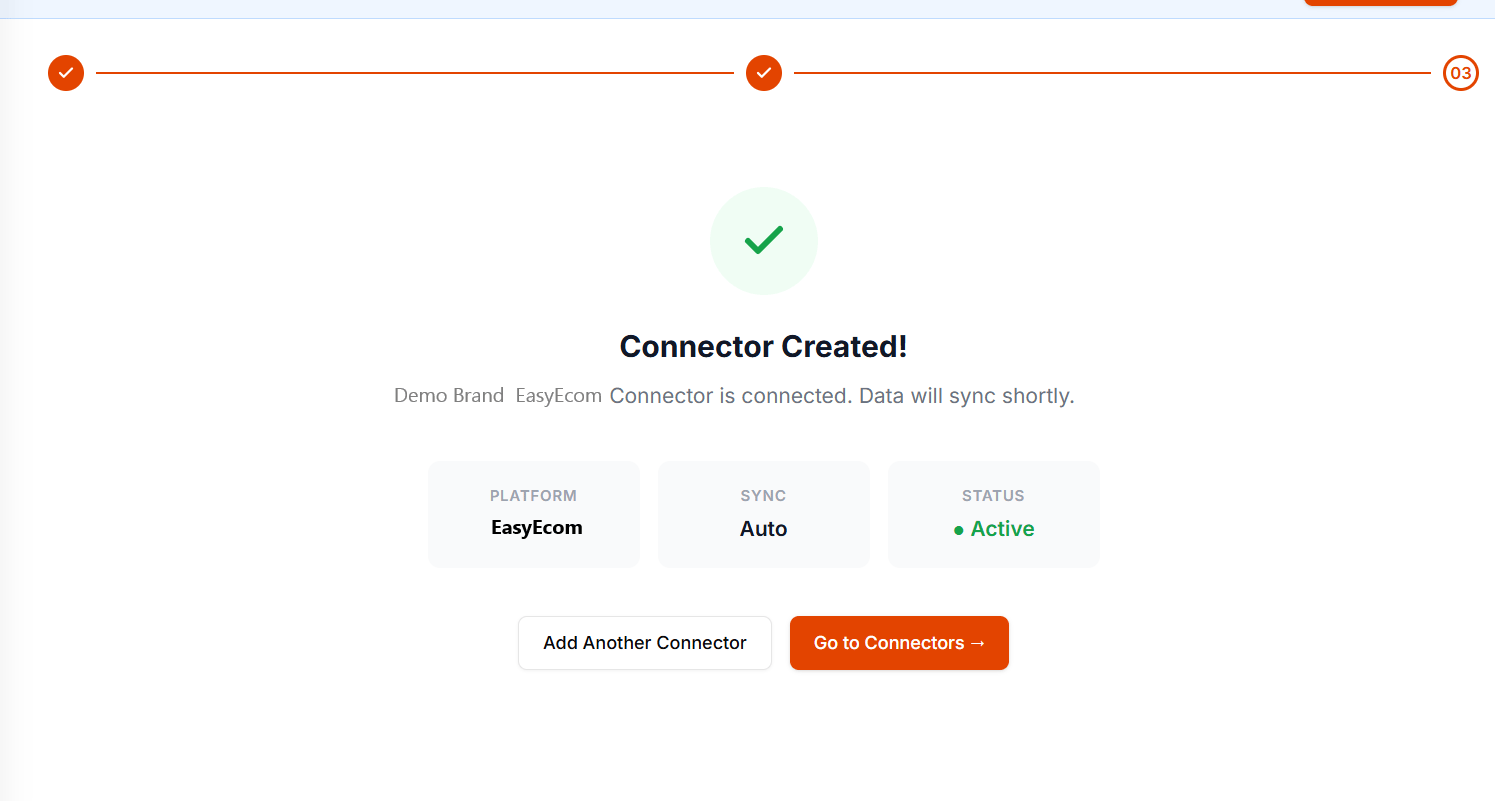
Click Create Connector. Ocular authenticates against the EasyEcom API; on success, you’ll see Connection successful.

Create

Click Create. Your credentials are encrypted in Ocular’s vault; your first incremental sync kicks off within minutes.
For ticket-writing format when filing a connector issue, see Working with the Ocular team → Connector-not-working tickets.